
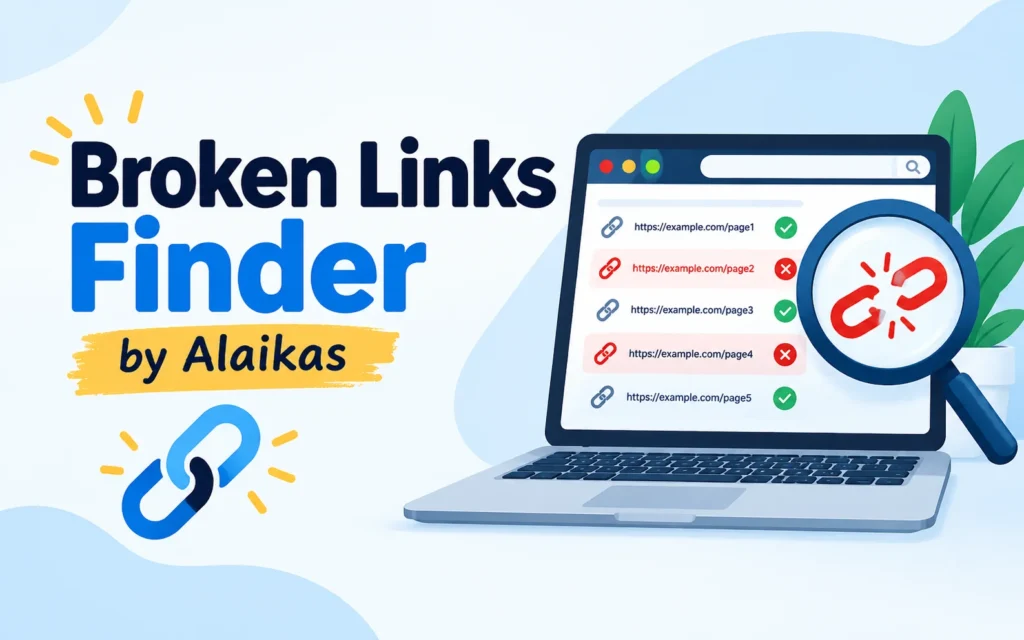
Broken Links Finder by Alaikas is a tool that scans your web pages, spots links that lead nowhere, and helps you fix them before readers or search engines notice.
Quick Facts at a Glance
| Detail | Info |
|---|---|
| Tool name | Broken Links Finder by Alaikas |
| Brand | Alaikas |
| Main job | Finds links that no longer work |
| Best for | Bloggers, site owners, guest posters |
| Pricing | Verify on the official site |
| Skill level needed | Beginner |
| Last updated | October 9, 2026 |
Let Me Tell You a Little Story
Picture this. You spend a whole weekend writing a great post. You hit publish. A reader loves it and clicks a link inside. Boom. “Page not found.”
Ouch. That reader just left. Maybe for good.
That’s the moment Broken Links Finder by Alaikas was made for. It checks your links so you don’t have to click each one by hand. Let’s talk about how it works, and how it fits into your routine.
What Is Broken Links Finder by Alaikas?
Think of it as a friendly inspector. You give it a page. It looks at every link on that page. Then it tells you which ones still work and which ones are dead.
Simple, right? You don’t need special skills. You don’t need to read any code. You just need a page address and a few minutes.
The tool also sits alongside other helpers from the same brand, a color converter that turns a hex color code into RGB numbers. One tool keeps your links healthy. The other keeps your colors right. Together, they cover two small jobs that make a site look and feel polished.
Why Do Dead Links Matter So Much?
Good question. Here are the three big reasons.
1. Readers lose trust. A dead link feels like a locked door. People wonder what else is out of date.
2. Search engines notice. Pages full of dead links can look neglected. That can hurt how well your site performs.
3. You waste your hard work. Every good link you built is worthless if the page behind it is gone.
How to Use Broken Links Finder by Alaikas (4 Easy Steps)
Here’s the routine I’d suggest. It takes about ten minutes.
Step 1: Paste Your Page Address
Pick the page you want to check. Start with your busiest page, like your home page or top blog post.
Step 2: Run the Scan
Press the button. The tool does the clicking for you.
Step 3: Read the Results
You’ll see which links work and which don’t. Sort the dead ones first.
Step 4: Fix and Recheck
Replace the bad link, remove it, or point it to a new page. Then scan again to be sure.
What Do the Results Mean?
Link checkers often show short codes. Here they are in plain words.
| What You See | What It Means | What to Do |
|---|---|---|
| 200 | Page works fine | Nothing. Celebrate. |
| 301 | Page moved to a new address | Update to the new address |
| 404 | Page is gone | Replace or remove the link |
| 410 | Page was removed on purpose | Remove the link |
| 500 | The other site is having trouble | Wait a day, then check again |
| Timeout | Page took too long to load | Test it by hand |
Our Fix-First Ranking (Editorial Opinion)
Not all dead links are equal. Here is the order I would fix them in. This is my own ranking based on how much harm each one tends to cause, not an official industry standard.
| Priority | Type of Broken Link | Why It Comes First |
|---|---|---|
| 1 | Links in your menu or footer | Every page shows them |
| 2 | Links on your top pages | Most visitors see them |
| 3 | Links inside popular blog posts | Readers click them often |
| 4 | Links to old images and files | They make pages look broken |
| 5 | Links in very old posts | Fewer readers, lower urgency |
Why Guest Posters Should Care
Are you searching this tool because you plan to write guest posts? Smart move. Here’s why.
Site owners who accept guest posts love clean articles. If your post has three dead links, the editor has extra work. Many will pass on your pitch.
Here’s a bonus trick. Use Broken Links Finder by Alaikas on a blog you’d like to write for. If you find a dead link on one of its pages, you can politely tell the owner and suggest your own article as a replacement, if it fits. Editors tend to appreciate the help.
Before you send any guest post, always:
- Check every link in your draft
- Make sure each link adds value for the reader
- Run a final scan the day you submit
Expert Insights From My Own Routine
I believe in keeping this simple. Here is what I’ve found works well after checking many client sites.
- Scan on a schedule. Once a month works for most small sites. Weekly is better for big ones.
- Check after big edits. Moving pages around breaks links fast.
- Fix the cause, not just the link. If one page keeps breaking, ask why.
- Keep a short log. Write down what you fixed and when.
5 Common Mistakes to Avoid
- Scanning only once. Links break over time. Make it a habit.
- Deleting every dead link. Sometimes a better page exists. Replace first, delete last.
- Ignoring links to other sites. They break too, and often faster than your own.
- Forgetting images and files. They count as links.
- Skipping the recheck. Always confirm your fix worked.
Conclusion
Dead links are small, but they cause big headaches. They push readers away, waste your effort, and make a site look unloved.
The good news? Fixing them is easy. With Broken Links Finder by Alaikas, you scan, sort, fix, and recheck in minutes.
Key takeaways:
- Scan your top pages first
- Fix menu and footer links before anything else
- Recheck after every fix
- Scan monthly, and always before submitting a guest post
FAQs
1. What does Broken Links Finder by Alaikas do?
It checks the links on a page and tells you which ones no longer work, so you can fix them.
2. Do I need any technical skills to use it?
No. If you can paste a web address, you can use it.
3. How often should I check my site for dead links?
Once a month is a good start. Check more often if you publish a lot or move pages around.
4. Is Broken Links Finder by Alaikas free?
pricing on the official Alaikas site before publishing this answer.
6. Can dead links hurt my rankings?
They can hurt the reader’s experience, and that may affect how your site performs. Fixing them is a smart habit either way.
7. Can I use it before sending a guest post?
Yes. Scanning your draft page or your live post helps you hand over clean work.
Thank you for reading
- Veganizoo Guest Posting: Is It Worth It in 2026?
- Factsreader Com Guest Post Review: DA, PA & Risks (2026)
- Rankmyposts Com Review 2026: Guest Post Metrics, Cost & Risks
- Furtherbusiness Com: What It Is, Whether It’s Safe, and How to Judge It in 2026
Find the latest Antutu rankings and benchmark results in one place on The Antutu Score.